
Your model is finished in Studio. Or you just found the MOC on Rebrickable. Either way, you're one step away from building it for real, and that step is the part list. This tutorial covers the three ways to turn any design into a parcel of bricks on BuyMeBricks, from the one-click shortcut to the "design it right from the start" method that seasoned MOC builders use.
Which method is for you?
| You have… | Use | Time |
|---|---|---|
| A model you're still designing in Studio | Method 1: the Studio palette | 5 min setup, once |
| A MOC page open on Rebrickable | Method 2: the browser extension | 1 click |
| Any part list file (CSV, XML, LDraw, Excel) | Method 3: upload the list | Under a minute |
1. Part lists 101: what's in the file?
A part list (also called a wanted list or inventory) is just a table with three things per line: which part (its design number, like 3001 for a 2×4 brick), which colour, and how many. Every design tool exports one, just in slightly different dialects:
| Where it comes from | Format | Accepted? |
|---|---|---|
| Studio | XML (BrickLink wanted list) | ✅ |
| BrickLink | XML wanted list | ✅ |
| Rebrickable | Rebrickable CSV | ✅ |
| LDraw-based tools (e.g. LeoCAD) | .ldr model file | ✅ |
| Your own spreadsheet | .xlsx / .xls | ✅ |
When you upload, every line is matched to the equivalent part and colour in our catalogue of over 41,000 compatible parts and colours, produced by our manufacturing partner GoBricks. You don't need to translate anything yourself.
2. Method 1: Design in Studio with only parts we stock
Best for: designers, and anyone who wants their model to ship 100% complete.
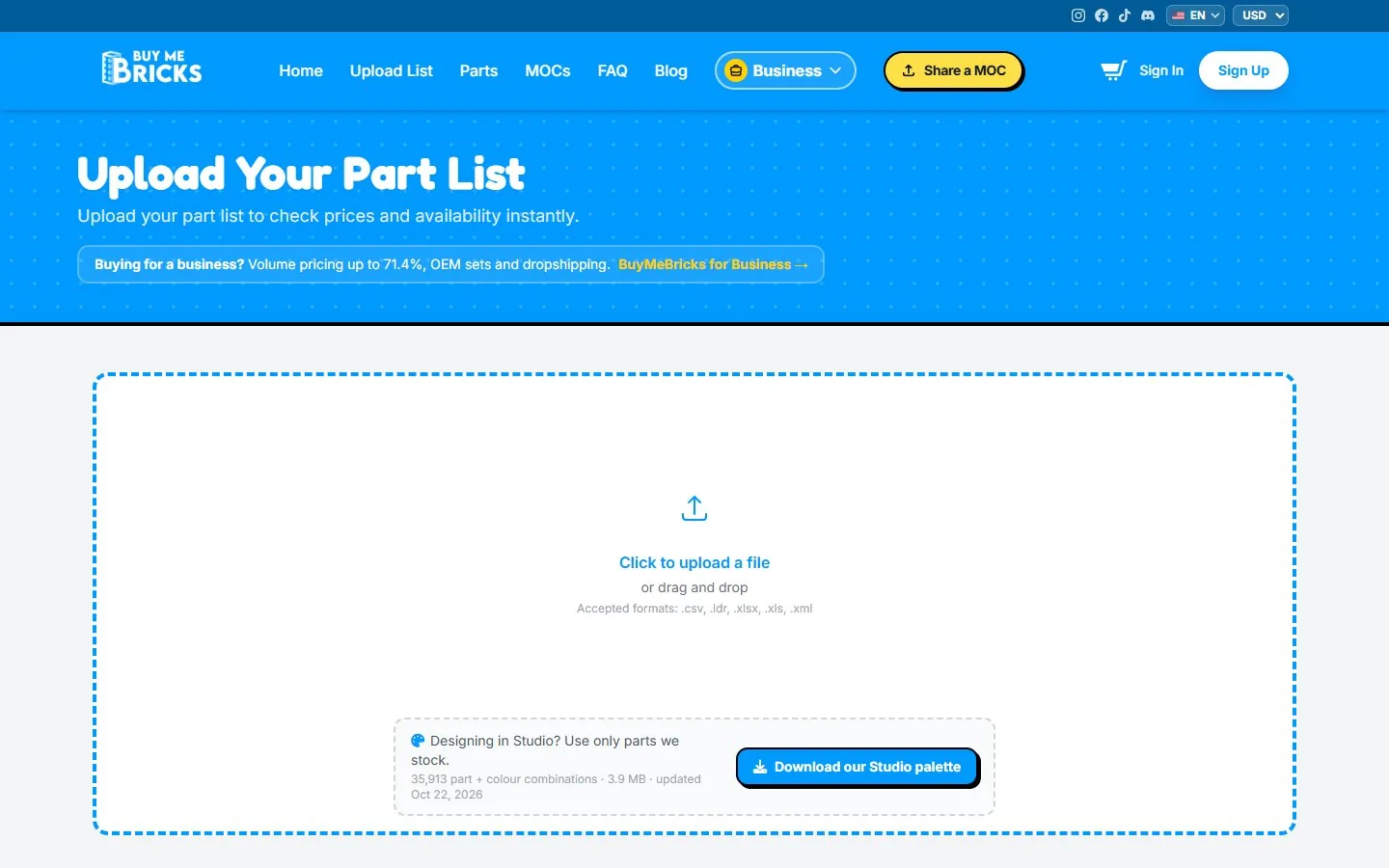
The most frustrating moment in MOC building is finishing a design, only to discover that one key part doesn't exist in the colour you used. The fix is to design with a palette that only contains what's actually available. We publish exactly that: the BuyMeBricks Studio palette, a file listing every part-and-colour combination we can send (over 35,000 of them). We rebuild it from our stock regularly.
Step by step
- Download the palette: BuyMeBricks_Studio_Palette.xml (also linked from the upload page). It's a BrickLink XML file.
- In Studio, open the palette panel and create a new custom palette. Give it an obvious name like "BuyMeBricks stock".
- Import the XML file into that custom palette.
- Build with it. Every brick you pick from this palette is one we can supply, in that colour.
- Re-download now and then. The palette is a snapshot of our stock on the date shown. Availability is checked again when you upload your final list, so a fresh palette means fewer surprises.
💡 Already halfway through a design?
No need to start over. Upload your current part list (Method 3) to see which parts are out of stock, then use the palette to pick replacements for just those.
Planning to sell your design? A MOC that ships 100% complete shows no warning badge in our store. Read how to sell your MOC next.
3. Method 2: Buy any Rebrickable MOC in one click
Best for: builders browsing Rebrickable who want the parts without the spreadsheet gymnastics.
Our free browser extension, "Buy parts on BuyMeBricks", adds a button to every MOC page on Rebrickable. One click and the MOC's entire part list opens on BuyMeBricks, already matched and priced, ready to add to your cart.
Step by step
- Install the extension from the Chrome Web Store. It's free and works in Chrome and other Chromium-based browsers.
- Sign in to Rebrickable. The extension downloads the part list the same way you would, using your own Rebrickable session. Rebrickable only allows that export for signed-in users.
- Open any MOC page (the address looks like
rebrickable.com/mocs/MOC-12345/…). - Click "Buy parts on BuyMeBricks". A new tab opens on our upload tool with the whole list imported and priced.
- Review and click Add to Cart.
It works on public MOCs and on your own private ones, and it doesn't need a Rebrickable API key. Note that the extension gets you the parts. If the MOC's instructions are sold on Rebrickable, buy them there to support the designer.
4. Method 3: Upload any part list
Best for: everything else. Any file, from any tool.
Step 1: Export your list
- Studio: File → Export As → export the part list as XML (BrickLink wanted list).
- Rebrickable: on the MOC or set page, open the inventory and choose Export parts → Rebrickable CSV (you need to be signed in).
- BrickLink: download your wanted list as XML.
- LDraw tools: use the .ldr model file as it is.
- A spreadsheet: one line per part, with part number, colour and quantity columns, saved as .xlsx or .xls.
Step 2: Drop it on the upload page
Go to Upload List and drag your file into the drop zone (or click to browse). Accepted formats: .csv, .ldr, .xlsx, .xls and .xml. Processing takes a few seconds for a typical MOC.
Step 3: Review, then add to cart
You'll see your parts with pictures, split into two tabs, plus your totals. More on reading those in the next section. Happy with it? Click Add to Cart, and you can keep adding other lists or MOCs before you check out.
5. Reading your results: available, out of stock, totals
| What you see | What it means |
|---|---|
| Available tab | Matched and in stock: these go into your cart. |
| Out of stock tab | Lines we can't supply right now. They're not added to your cart or your price. |
| Available parts | Total number of pieces you'll receive. |
| Total available references | Number of distinct part + colour combinations. |
| Total weight | What your shipping is calculated from (shipping is priced by weight and destination). |
| Total price | The parts price, before shipping and any discount. |
6. What to do with out-of-stock parts
Out-of-stock lines aren't a dead end. You have three good options:
- Export them. Click Export out-of-stock (XML) to download just the missing lines as a wanted list, and source them from your collection or another store.
- Substitute in your design. Open the model in Studio with our palette loaded, swap the missing parts for available ones, re-export and re-upload.
- Order what's available now. Most of the time the gaps are a few small pieces any builder has in a spare-parts box.
7. Troubleshooting checklist
- "Nothing happens when I upload." Check the extension of your file: it must be .csv, .ldr, .xlsx, .xls or .xml. Studio's native .io file isn't a part list, so export it first.
- "My Rebrickable export won't download." You need to be signed in to Rebrickable, for both the manual export and the extension.
- "The extension button doesn't show." Make sure you're on a MOC page (
/mocs/MOC-…), not a set or search page, then reload it. - "My spreadsheet isn't recognised." Keep it simple: one header row, then one part per line with part number, colour and quantity.
- "Lots of parts are out of stock." That usually means unusual colours. Load our palette in Studio to see which colours each part comes in.
Got a part list? Price it now.
Drop your file and see availability, weight and price in seconds. No account needed to check.
Upload a part list →8. FAQ
How do I export a part list from Studio?
Open your model, go to File → Export As, and export the part list as an XML (BrickLink wanted list) file. Upload that file on our Upload List page.
How do I import the BuyMeBricks palette into Studio?
Download the palette file, create a custom palette in Studio's palette panel, and import the file into it. It's a BrickLink XML file.
Can I order the parts for a Rebrickable MOC?
Yes. Export the MOC's inventory as a Rebrickable CSV and upload it, or install our free browser extension and click "Buy parts on BuyMeBricks" on the MOC page.
Is there a minimum order?
No. You can order a single brick or ten thousand. Shipping is priced by weight, and it's free on parts orders over $50 to most destinations.
Are your parts compatible with the bricks I already have?
Yes. They're brick-compatible and can be mixed with your existing collection.


 Buy parts on BuyMeBricks · ~$24.50